The core of an admin model is its fields. They carry the information about every database column, the form validation rules, the relations, and the generation of the administration interface from the forms down to the listing tables.
The database is synchronised on every change to the fields through the automatic migration php artisan admin:migrate.

Writing fields

Fields are a multi-dimensional array in the fields property of the admin model. Each key is the name of a database column, and the value is the field configuration combined with Laravel validation rules. The configuration has two forms: an array, or a string of parameters separated by |.

String notation

This notation is recommended for all fields.

Array notation

Not recommended — models with dozens of fields become very long.
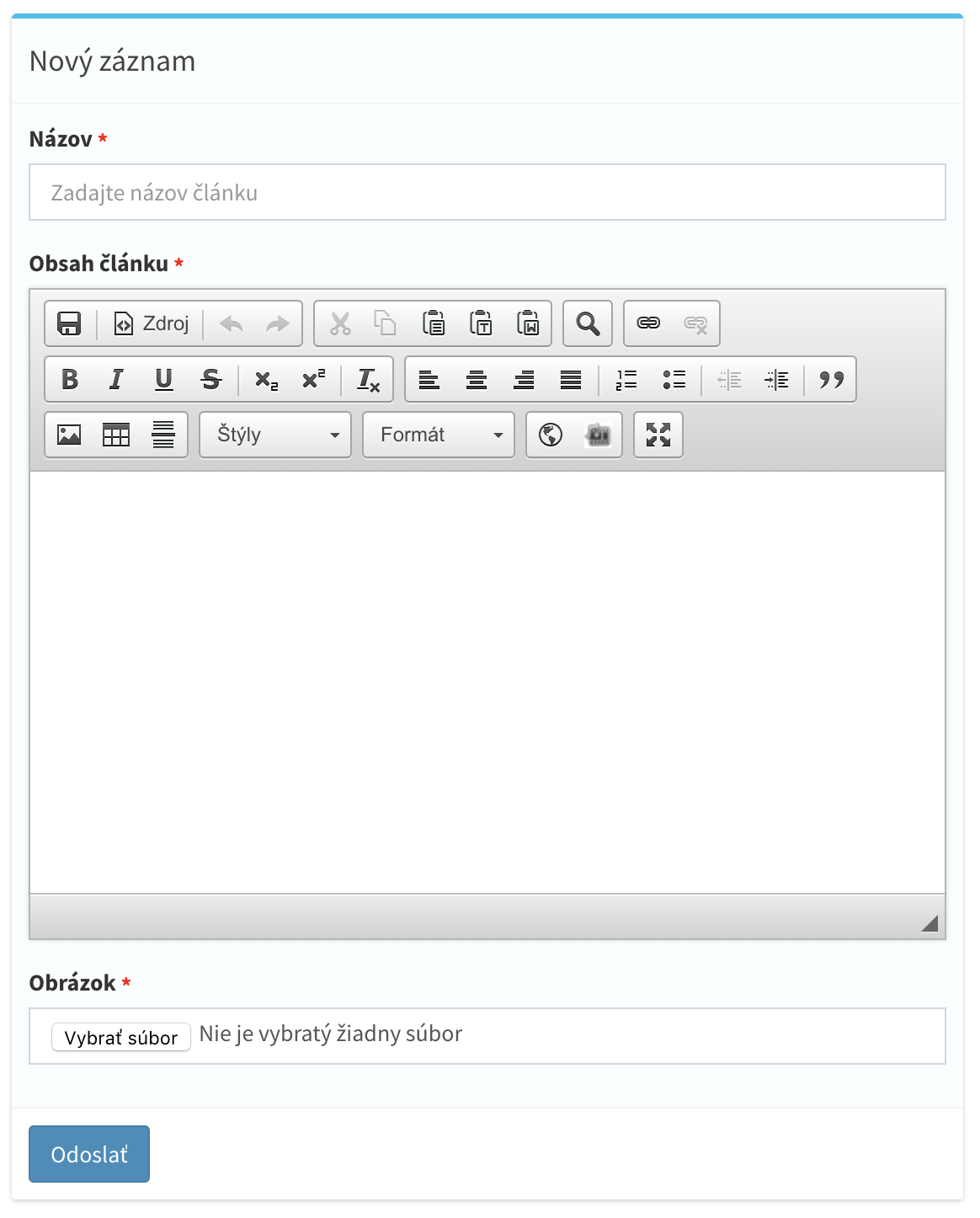
The interface generated from this configuration:
Form generated from the field definition

Method notation

Sometimes validation has to differ between creating a new record and editing an existing one. In that case $row holds the record being edited. Combining the string notation with arrays is the recommended form whenever you need more complex rules through Laravel rule objects.

Field types

Text

A text field represented by a plain input.
type:string is the default, so it does not have to be written explicitly.

Long text

A text field represented by a textarea.
Use type:longtext for longtext support in the database.

Rich-text editor

A CKEditor input for simple text formatting.
Use type:longeditor for longtext support in the database.

Integer

Decimal

Checkbox

An active or inactive value.

Password

A hidden value of the password type.

Select

One value from a list:
Several values from a list:
Filling the list Values can be supplied in three ways. The first is the options parameter in the field configuration, where the items are separated by commas.
The second is defining keys and values in the $options property of the admin model.
The third is the options() method, for dynamically generated values.

Radio

Several options presented as radio inputs.
Values are supplied the same way as for the select type, through the options parameter in all of its forms.

Relations

Loads values into a select or multiselect from existing records in any database table. The first value of the parameter is the table name, the second is the column whose data is listed to the user.
Combining columns in the listing Columns can be interpolated with a colon and the database column name, combined with your own text format.
Adding related records from the field canAdd allows inserting records into the related table directly from the field.
Relation field with the add-record button
Filtering the records filterBy filters the options of the current list based on the value of another field.
Relations and their settings are covered in Database relations.

File uploads

An input for uploading a file or an image with automatic cropping.
Use the multiple parameter to upload several files into one field.
If the model contains only one file field, multirows creates a separate record for each uploaded file when the form is submitted.

Date and time

Use the optional multiple parameter to select several dates or times at once, and format:d.m.Y to change the format.

Field parameters

Every field supports additional configuration through global attributes, including the Laravel validation rules, which can be combined with any field.

Form parameters

required
The label of the field.name:Article name
required
The type of the field.type:string
A description rendered as small text below the field.title:Enter the phone number as +421 xxx xxx xxx
Placed inside the field while it is empty.placeholder:Enter the phone number as +421 xxx xxx xxx
Disables the field in the form.
The default value of the field.default:10For a nested model you can use a value from the parent record.default:$parent.name or default:table_name.name
Removes the field from the form entirely — its value is not present in the submitted request.
The field stays in the form and in the submitted request, but is invisible to the user.
Hides the field only when creating a record.
Hides the field only when editing a record.
Renders the field with your own Vue component.component:MyComponentNameSee custom fields.
When the model contains only one file field, submitting the form with several files creates a separate record for each of them.
Makes the field translatable. The column type switches to JSON, holding the value for each language version.See mirrored content.
A one-to-one relation.belongsTo:users,usernameSee Database relations.
A many-to-many relation.belongsToMany:users,usernameSee Database relations.
Allows inserting new records from a relation field.See adding related records.
The options of a select or radio field.options:Apple,Banana,Strawberry
Allows selecting several values. Supported by select, file, date and time fields.
Filters the options based on another field. Supported by select, belongsTo and belongsToMany fields.filterBy:field_name,database_column_nameSee filtering records.
Prefills the field from a column of the selected related record.fillBy:field_name,database_column_nameSee prefilling values.

Listing table parameters

Hides the value from the record listing.
Hides the field from both the listing and the form.
The character limit in the listing table.limit:50
The default ordering of records by this column.orderBy:asc or orderBy:desc
Renders the column as a clickable phone link.
A different column title in the listing than the field label in the form.column_name:My other column title

Database parameters

SQL attribute for unique records.
SQL attribute for indexing the column.
SQL attribute for positive numbers.
A form field with no database column behind it. Useful for helper fields or custom components that store nothing.

Scoped parameters

Applies the parameter only in the administration.inAdmin:required
Applies the parameter only on the frontend.inFrontend:required
Applies the parameter only in the console.inConsole:required

Custom fields

When you need your own field, CrudAdmin lets you build one that is reactive and customisable to your requirements. Creating a field takes two steps. First, create the Vue component with an artisan command.
The command creates resources/views/admin/components/fields/MyCustomField.vue. The default component contains a working field template you can customise. Then assign the component to a field with the component parameter. The component is loaded from the global components directory automatically.
The component follows the standard Vue structure — a <template> element with the HTML, and a <script> element with the logic. CrudAdmin parses and renders both without a build step.
resources/views/admin/components/fields/MyCustomField.vue
Vue components do not need to be compiled. CrudAdmin loads and renders them automatically.
Components are loaded recursively from resources/views/admin/components. The directory is configurable in the administration configuration.

Grouping fields

Fields can be arranged into groups, which makes complex forms with many fields easier to read. A group is created by passing fields to one of the methods of the Admin\Fields\Group class, available in every admin model.
A group can be named in two ways — through the array key, or through the name() method.
A group can also have an icon, set with icon('fa-truck'). See the Font Awesome 4 icon list.
For more complex work with a group, give it an identifier with id('my-id'), which you can target with CSS or use to modify the fields in the group dynamically.

Full width group

This example shows both ways of naming a group.
Two full width field groups

Half width group

Two half width field groups side by side

Third width group

Three field groups side by side

Custom width group

The width can also be set dynamically with width(), building your own grid divided into 12 parts.
Field groups with custom grid widths

Inline group

inline() aligns every field in the group into a single row.
Field group with inline fields

Nested groups

Groups can be nested to any depth, which lets you build complex forms.
Recursively nested field groups

Arranging fields into tabs

Fields can also be arranged into tabs.
Tabs are named the same way as groups, and can carry an icon set with icon('fa-truck').
Tabs can be nested to any depth and combined freely with groups.

Tabs combined with groups

Fields arranged into tabs

A tab from an admin model

A tab can also hold a complete admin model module.
If the child model has a $belongsToModel relation to the model where the tabs are defined, you can place that related submodel into a specific tab. A model with no relation to the current one can be placed in a tab as well.
A tab containing a whole admin model module